Sharing and access control
Overview
AP provides an access control model referred as sharing. The sharing model works on the object level, where objects means specific instances of the various entities in AP. The following entities support sharing in AP.
- Data pipelines
- Views
- Scripts
- Data quality checks
- Destinations
- Workflows
The sharing model controls which users and user groups can view and edit specific objects in AP.
AP provides user groups, which allows for grouping of users and can be granted access to objects. The sharing model is compatible with the RBAC security model, where user groups represent roles within the organization, and can be granted access at the role level.
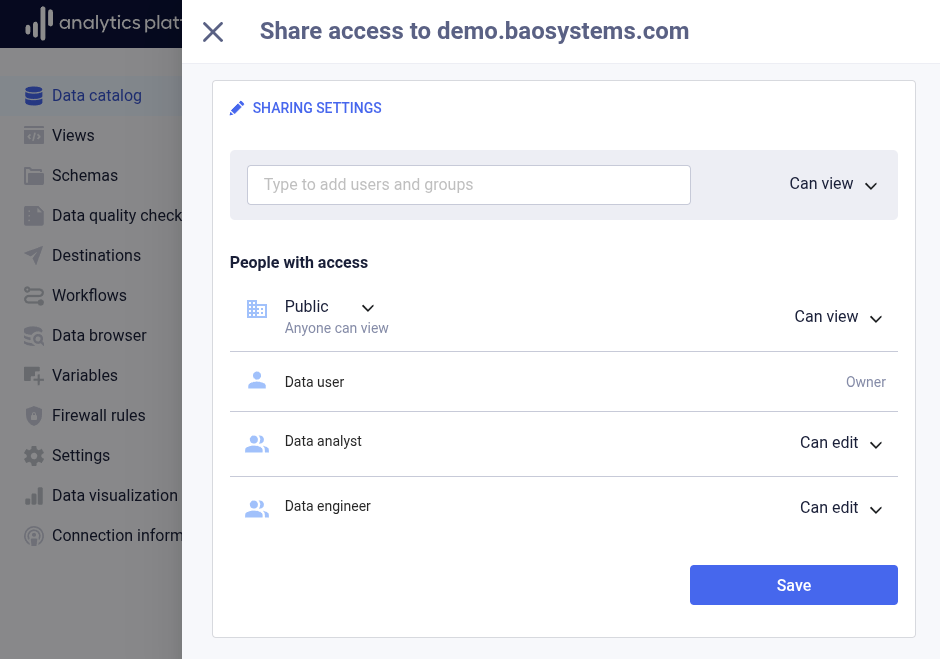
Who has access
The first dimension is access and defines who has access to an object. The following three access levels exist.
| Level | Description |
|---|---|
| Public | All authenticated users within the organization |
| User group | Users which are members of a specific user group |
| User | Specific users |
Here, public refers to all authenticated users witin the client organization, and not anyone on the Internet.
What actions are allowed
The second dimension is permission and defines what actions a user is allowed to perform on an object. The following three permission levels exist.
| Level | Description |
|---|---|
| Can view | Read permission |
| Can edit | Read and write permission |
| None | No permission |
Here, read is the ability to view information about an object, while write is the ability to create, update and delete an object.
The combination of who has access and what actions those users are allowed to perform on specific objects defines the sharing model in AP.
Managing sharing
The following section covers how to set and update sharing for an object.
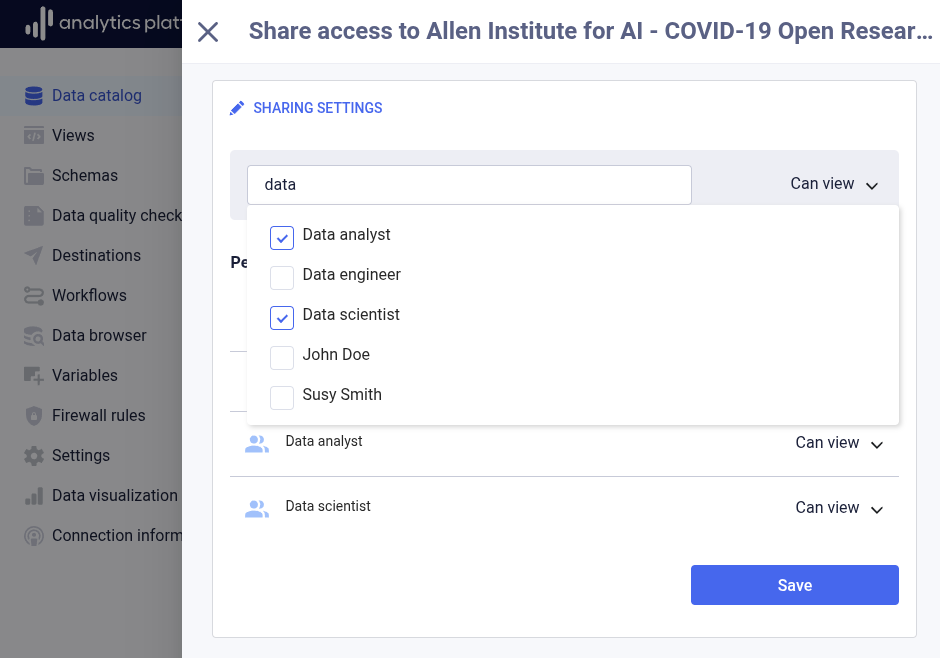
Open sharing dialog
- In the list of objects (e.g. data pipelines), click the name of the object to view more information.
- Click the context menu in the top-right corner.
- Click Share.
Set who has access
- Enter the name of the user group or user in the seach input field.
- Check the checkbox next to the user group or user to share the object with.
- Click anywhere outside the search dialog to close it.
Set what actions are allowed
- Next to the Public label, select Can view, Can edit or None from the drop-down. To remove public access altogether, select Restricted from the Public drop-down.
- Next to each user group and user, select Can view, Can edit or Remove access from the drop-down.
- Click Save to store the sharing settings.
Data warehouse sharing
Wheng creating a user in AP, a corresponding data warehouse user account is automatically created with the same username. This user account can be leveraged for direct connections to the data warehouse, e.g. from desktop BI and data analysis tools. The data warehouse user account inherits the sharing access from the owning AP user account. User access for data pipelines, datasets and views in the AP data catalog is replicated for the associated tables and views in the data warehouse.