Scripts
Overview
The integrated scripting support in AP allows data analysts and data scientists to create data transformations and analytics. AP supports the R scripting language. Python support is coming soon.
In AP, data pipelines automates the ingestion of data from multiple sources into the central data store. Scripts have access to the entire catalog of datasets and tables, allowing for integrated and sophisticatd data transformations.
AP provides a web-based editor for scripting with syntax highlighting and code completion and a console area which displays script output. This makes it straight-forward to write scripts and get access to data.
Scripts can be included as jobs in workflows in combination with data pipelines, SQL transformations and destinations, allowing for flexible and orcestrated data movement and transformation.
Script flow
The sripting editor provides a function for aquiring a connection to the AP data warehouse. The function name is connect_datawarehouse and is available for all supported scripting languages. This function provides a connection to the data warehouse, making it easy to read and write data to the data warehouse. For scripts, a typical flow is described below.
- Retrieve data from the data warehouse with a SQL using the data warehouse connection provided by the
connect_datawarehousefunction. - The SQL query will specify aggregation and filters to retrieve the relevant data, and ensure that an appropriate set of data records is pulled into the script environment.
- Perform data computation such maching learning, forecasting and data modelling.
- Load the resulting data into a data frame.
- Write the data frame to a table in the data warehouse.
This section covers the supported scripting languages.
R scripting
The R scripting language is supported and is ideal for statistical computing and graphics.

Python scripting
The Python scripting language is supported and is ideal for machine learning, data modelling and statistics.
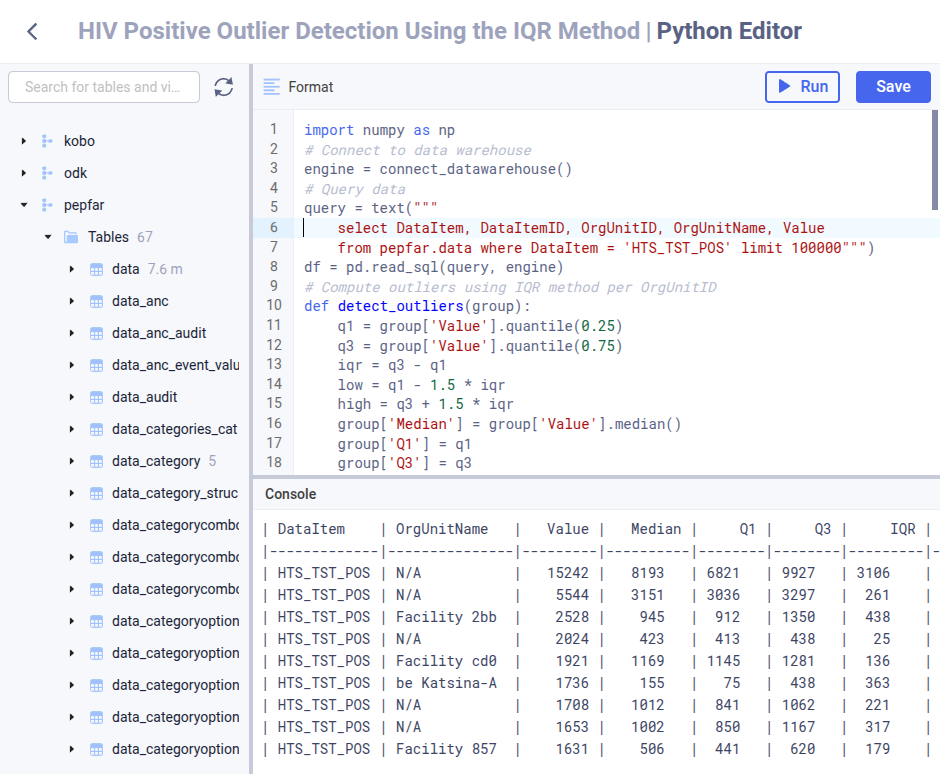
Natural text script generation
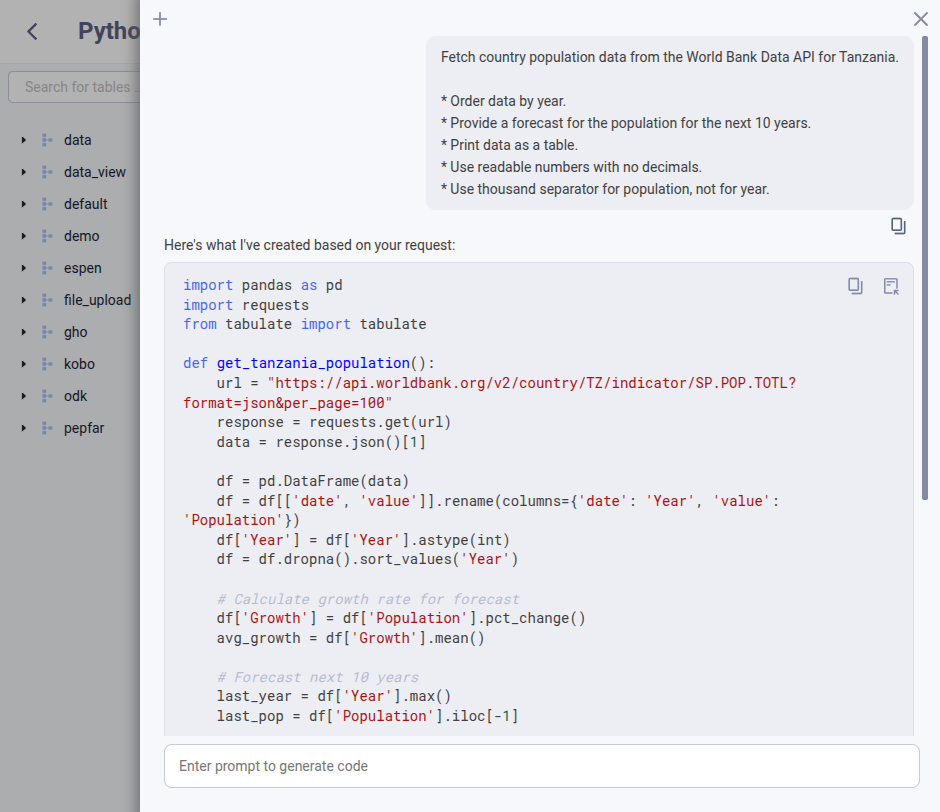
The script editor allows for specifying a natural text description of the outcome you want to achieve in a conversational style and have the AI-powered editor generate a script automatically. For example, ask the platform to perform outlier detection using the modified Z-score statistical algorithm, build a light-weight API data connector and provide forecasting for a particular data table.
Generate script
- In the script editor area, click the right side panel.
- Specify the natural text description in the input area.
- Select the reasoning level, or leave it on Fast.
- Click the generate icon or click Enter.
- In the script output area, click the Copy icon to copy the text.
- Alternatively, click the Insert icon to insert the script directly into the script area.
- Click the Close icon or click anywhere outside the right side panel to close it.
Reasoning levels
For natural text script generation, a reasoning level drop-down is available next to the prompt input area with options for fast and thinking reasoning levels.
- Fast: Appropriate for simple to moderately complex natural text prompts. It returns scripts quickly with a low LLM token usage.
- Thinking: Appropriate for complex natural text prompts. It returns scripts typically within 2 to 8 seconds with a moderate LLM token usage.
Manage scripts
The following section covers how to view, create, update and remove scripts.
Scripts can be managed in two ways:
- From the script list page which is accessible from the Scripts item in the left side menu.
- From the script editor which is accessible from the Create new button in the top right corner of the script list page.
This section covers how to manage scripts using the script editor.
Open script editor
- Click Scripts in the left side menu.
- Click Create new in the top right corner.
- Select the type of script to write (Python or R).
Scripts can be managed using the File menu from the top menu bar. The name of the active script is displayed in the script bar immediately below the top menu bar.
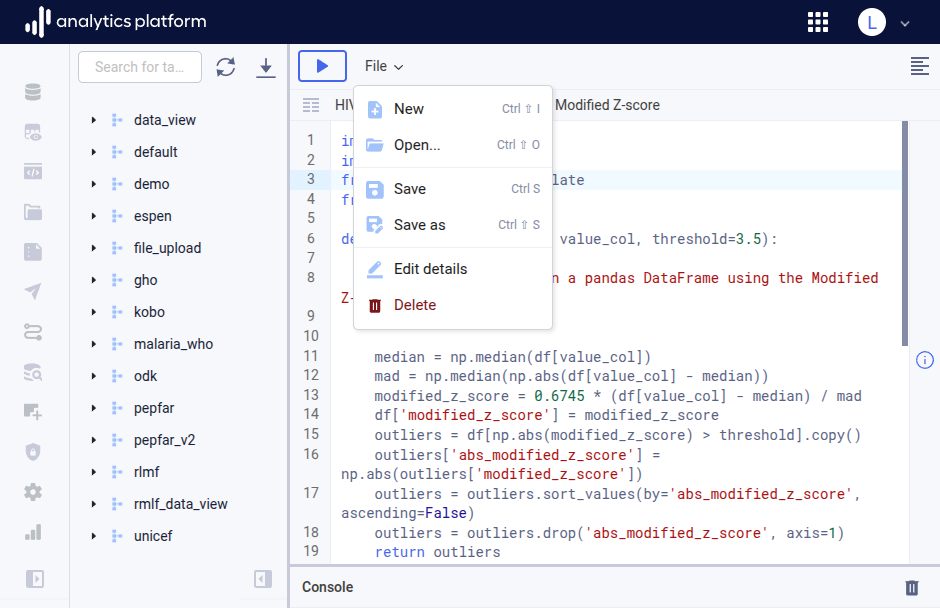
Create script
- If an active view is present, click File from the top menu, then click New.
- Write the script in the script area.
- Click File from the top menu to open the file menu.
- Click Save as.
-
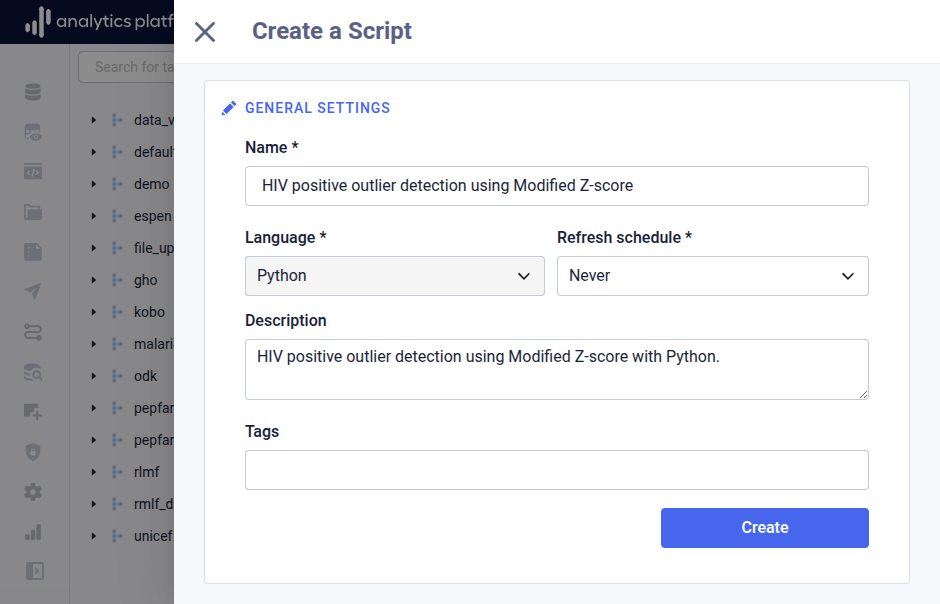
Enter the following information.
Field Description Name The name of the script Refresh schedule The interval for when to run the script (required) Description A description of the script Tags Free text tags which categorizes the script
Open script
- Click File from the top menu to open the file menu.
- Click Open to open the script list dialog.
- Click the name of the script to open.
Update script
- Open the relevant script and make the required changes to the code.
- Click File from the top menu to open the file menu.
- Click Save to update the active script with the code changes.
Edit script details
- Open the relevant script.
- Click File from the top menu to open the file menu.
- Click Edit details to open the script details dialog.
- Edit values in the relevant fields.
- Click Save to update the active script.
- Close the dialog by clicking the close icon in the top-left corner.
Remove script
- Open the relevant script.
- Click File from the top menu to open the file menu.
- Click Delete.
- Click OK in the confirmation dialog to remove the active script.
Manage access for script
- Find and click the script in the list.
- Open the context menu by clicking the icon in the top-right corner.
- Click Share.
- Grant appropriate access levels to users and user groups.
- Click Save.
Using variables in scripts
Scripts support the use of variables, allowing you to reference dynamic values within your script code. To reference a variable, use the following syntax.
${VAR_NAME}
For example, if you have a variable named START_DATE, you can use it in your script as ${START_DATE}. When the script is executed, ${START_DATE} will be replaced with the actual value of the variable.
Packages
Packages commonly used for data analysis and data science are available in the AP scripting environment.
Python
The available Python packages are listed below.
| Package | Description |
|---|---|
| numpy | Scientific computing including arrays, matrice and math functions. |
| scipy | Scientific and technical computing, built on numpy. |
| pandas | Data manipulation and analysis including data frames. |
| scikit-learn | Classical machine learning and predictive data analysis. |
| nltk | Natural language toolkit working with human language data. |
| joblib | Pipeline persistence and parallel computing. |
| tabulate | Print data in pretty, readable tables. |
| prophet | Forecasts for univariate time series datasets. |
| python-dateutil | Handling of time-series data and time zone conversions. |
| statsmodels | Statistical modeling, tests and data exploration. |