Destinations
Overview
AP offers destinations for loading data from the platform back into operational systems. This is valuable in order to enrich the destination system with integrated and harmonized data from a variety of sources.
The following destinations are supported.
Applications
- DHIS2: A flexible, an open-source, web-based platform for collecting, analyzing and visualizing health data, widely used for managing and monitoring health programs, particularly in low-resource settings.
Manage destinations
The following section covers how to view, create, update and remove destinations.
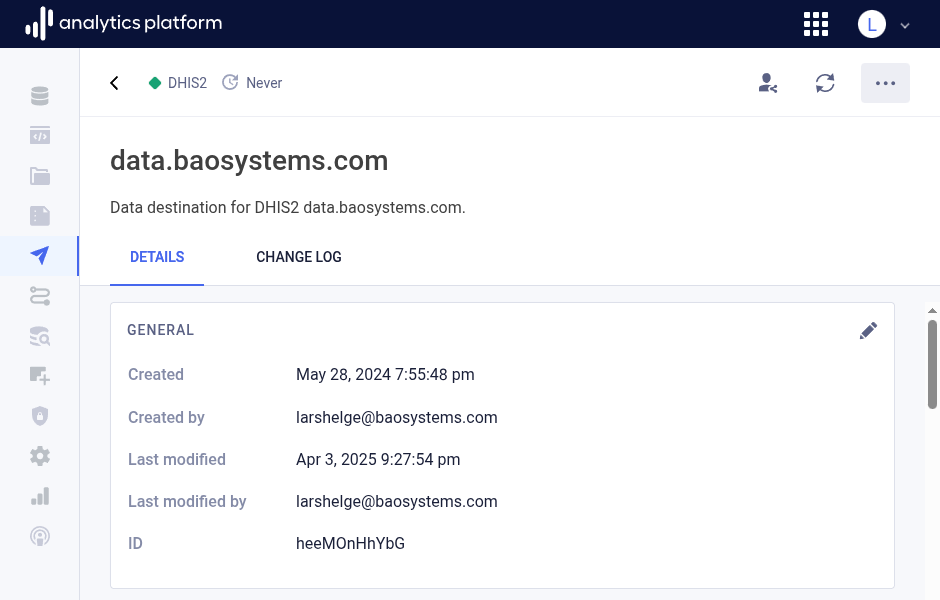
View destination
- Click Views in the left side menu to view all destinations.
- Click the name of a view to see more information.
Create destination
- Click Create new from the top right corner.
- Chose the type of destination.
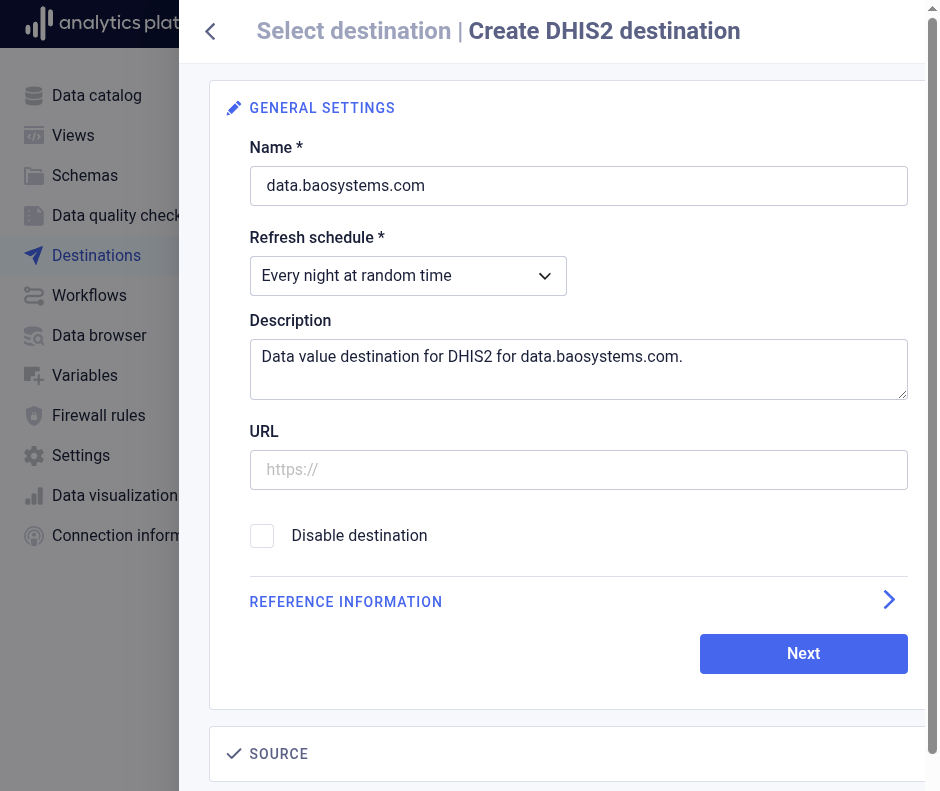
General settings
In the General settings section, enter the following information. This section is present for all destination types.
| Field | Description |
|---|---|
| Name | The name of the destination (required) |
| Refresh schedule | The interval for when to refresh data from the data source (required) |
| Data type | The type of data for the destination to load |
| Description | A description of the data pipeline |
| URL | A URL to the source data or system |
| Disable destination | Whether to disable loading of destination data |
Source
In the Source section, select the view to use to retrieve destination data.
| Field | Description |
|---|---|
| View | The view to use to retrieve destination data |
DHIS2 Web API
| Field | Description |
|---|---|
| Base URL to web API | Base URL to web API for DHIS2 instance, do not include /api |
| Username | Username for DHIS2 user account |
| Password | Password for DHIS2 user account |
Import options
| Field | Description |
|---|---|
| Data element ID scheme | The data element ID scheme to use for data import |
| Org unit ID scheme | The organisation unit ID scheme to use for data import |
| Cat opt combo ID scheme | The category option combo ID scheme to use for data import |
| General ID scheme | The general ID scheme to use for data import |
| Dry run | Whether to make a dry run import without saving data in the destination |
| Skip audit | Whether to skip generating audit records during data import in the destination |
Edit destination
- Find and click the destination to edit in the list.
- Open the context menu by clicking the icon in the top-right corner.
- Click Edit.
- Edit values in the relevant sections.
- Click Save at the bottom of the section.
- Close the dialog by clicking the close icon in the top-left corner.
Remove destination
- Find and click the destination to remove in the list.
- Open the context menu by clicking the icon in the top-right corner.
- Click Remove.
Trigger destination
Destinations can be triggered manually. A destination task will start in the background when the destination is triggered. Use the change log to view the task progress.
- Find and click the destination in the list.
- Open the context menu by clicking the icon in the top-right corner.
- Click Trigger.
Manage view for destination
Destinations read data from SQL views. Column name matching is permissive and tolerates variations. Matching is case insensitive, and allows names with or without underscore and _id suffix. Using a DHIS2 data element column as an example, the following column names are valid:
| Column name variation |
|---|
| data_element_id |
| dataelementid |
| data_element |
| DataElementID |
| DataElement |
The following section describes view columns for each type of destination.
DHIS2 view
Aggregate data
The following columns apply for DHIS2 destinations of type aggregate data.
| Field | Column name | Required |
|---|---|---|
| Data element | data_element_id | Yes |
| Period | period_id | Yes |
| Org unit | org_unit_id | Yes |
| Category option combo | category_option_combo_id | Yes |
| Attribute option combo | attribute_option_combo_id | Yes |
| Value | value | Yes |
| Stored by | stored_by | No |
| Comment | comment | No |
| Follow-up | followup | No |
An example of a SQL query to use with a view as source for a DHIS2 destination.
select
  dv."DataElementID",
  dv."PeriodID",
  dv."OrgUnitID",
  dv."CatOptComboID",
  dv."AttOptComboID",
  dv."Value",
  dv."Deleted"
from
  dhis2.datavalue dv;
Complete data set registrations
The following columns apply for DHIS2 destinations of type complete data set registration.
| Field | Column name | Required |
|---|---|---|
| Data set | data_set_id | Yes |
| Period | period_id | Yes |
| Org unit | org_unit_id | Yes |
| Attribute option combo | attribute_option_combo_id | Yes |
| Completed | completed | Yes |
| Created by | created_by | No |
An example of a SQL query to use with a view as source for a DHIS2 destination.
select
  cr."DataSetID",
  cr."PeriodID",
  cr."OrgUnitID",
  cr."AttOptComboID",
  cr."Completed",
  cr."CreatedBy"
from
  dhis2.completedatasetregistration cr;
Event
The following columns apply for DHIS2 event type destinations.
| Field | Column name | Required |
|---|---|---|
| Event | event_id | Yes |
| Enrollment | enrollment_id | Yes |
| Program stage | program_stage_id | Yes |
| Org unit | org_unit_id | Yes |
| Occurred at | occurred_at | Yes |
| Data element | data_element_id | Yes |
| Value | value | Yes |
| Data value created | data_value_created | No |
| Data value last updated | data_value_last_updated | No |
| Program | program_id | No |
| Attribute option combo | attribute_option_combo_id | No |
| Status | status | No |
| Created at client | created_at_client | No |
| Updated at client | updated_at_client | No |
| Scheduled at | scheduled_at | No |
| Completed at | completed_at | No |
| Completed by | completed_by | No |
| Stored by | stored_by | No |
| Attribute category options | attribute_category_options | No |
Results are ordered by columns whose names start with event (e.g. event_id).
An example of a SQL query to use with a view as source for a DHIS2 event destination.
select
  ev."event_id",
  ev."enrollment_id",
  ev."program_stage_id",
  ev."org_unit_id",
  ev."occurred_at",
  ev."data_element_id",
  ev."value",
  ev."status",
  ev."stored_by"
from
  dhis2.event_datavalue ev;
Manage access for destination
- Find and click the destination in the list.
- Open the context menu by clicking the icon in the top-right corner.
- Click Share.
- Grant appropriate access levels to users and user groups.
- Click Save.
View change log
The Change log tab displays an overview of tasks for the destination. A task represent a single destination run. For each task, following information is available.
- Start time: The time at which the task started.
- Duration: The duration of the task.
- Rows: The number of data records which were imported by the task.
- Status: The status of the task, can be Successful, which means the task completed successfully, Failed, which means the task completed with an error, and Pending, which means the task is currently in progress.
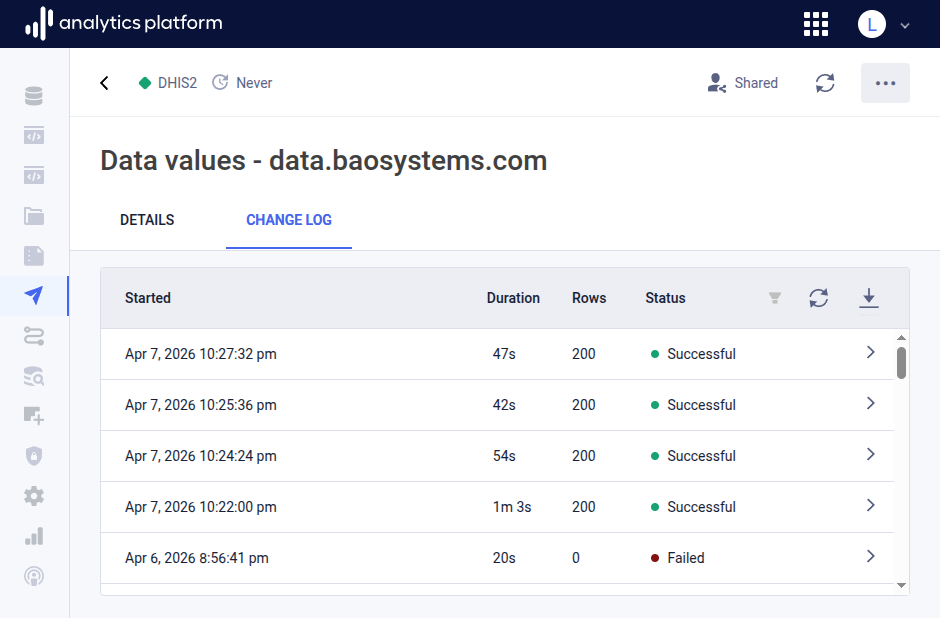
Task log
You can click on a task row to view logs for the task. The logs provides detailed information about the data import.