Data quality checks
Overview
Ensuring high data quality is crucial for any organization that relies on data for decision-making, analysis, and strategic planning. High-quality data can significantly enhance accuracy in reporting, consistency in analytics, and reliability in automated decisions. Conversely, poor data quality can lead to misguided decisions based on inaccurate, incomplete, or outdated information.
AP provides data quality checks to ensure the integrity and accuracy of your data. These checks allow users to define specific criteria that data must meet before it is considered valid for analysis and reporting. This functionality includes:
- Outlier detection: Identify data points that deviate significantly from the norm. Outliers may indicate data entry errors or unusual events that could skew analysis results.
- Relationship: Ensure that relationships between data items make sense. For example, the number of tests should most likely not exceed positive tests.
- Data completeness: Verify that all required data fields are populated and that data spans the required time frames or categories.
- Consistency: Compare data across time, category and sources to ensure data has a consistent format, is free from duplicates and uses the same coding system.
Data quality checks in AP are based on SQL queries which define and enforce these rules. By writing a SQL query, users can precisely specify the conditions under which data is considered valid. The SQL query result set will reveal conditions which are in violation of the check. When a SQL query identifies data that violates a quality check, AP can trigger alerts or even prevent the integration of flawed data into your reports and analyses.
Manage data quality checks
The following section covers how to view, create, update and remove data quality checks.
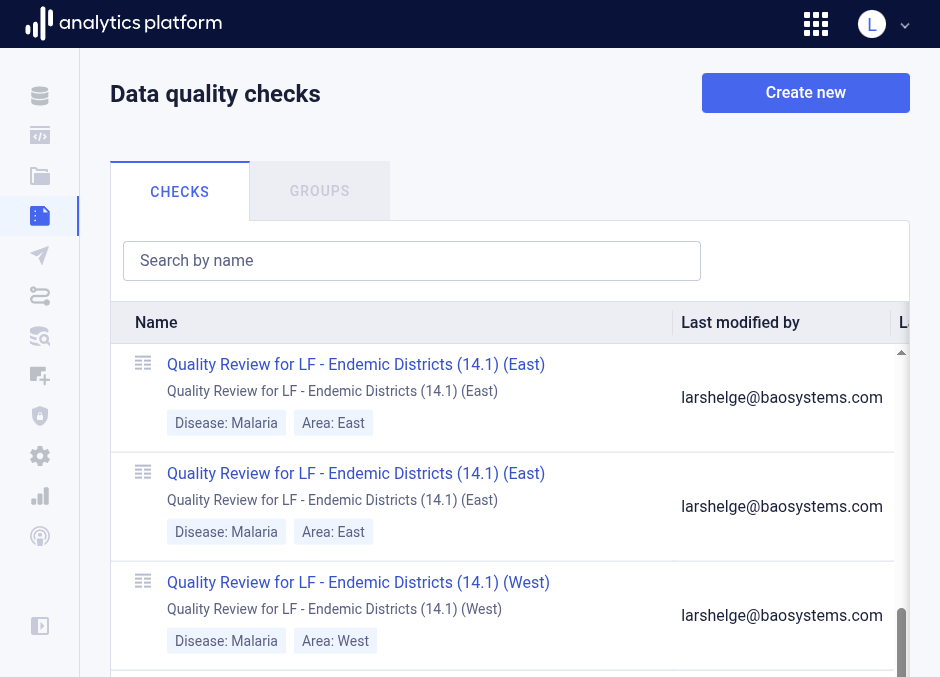
Create data quality check
- Click Create new from the top-right corner.
-
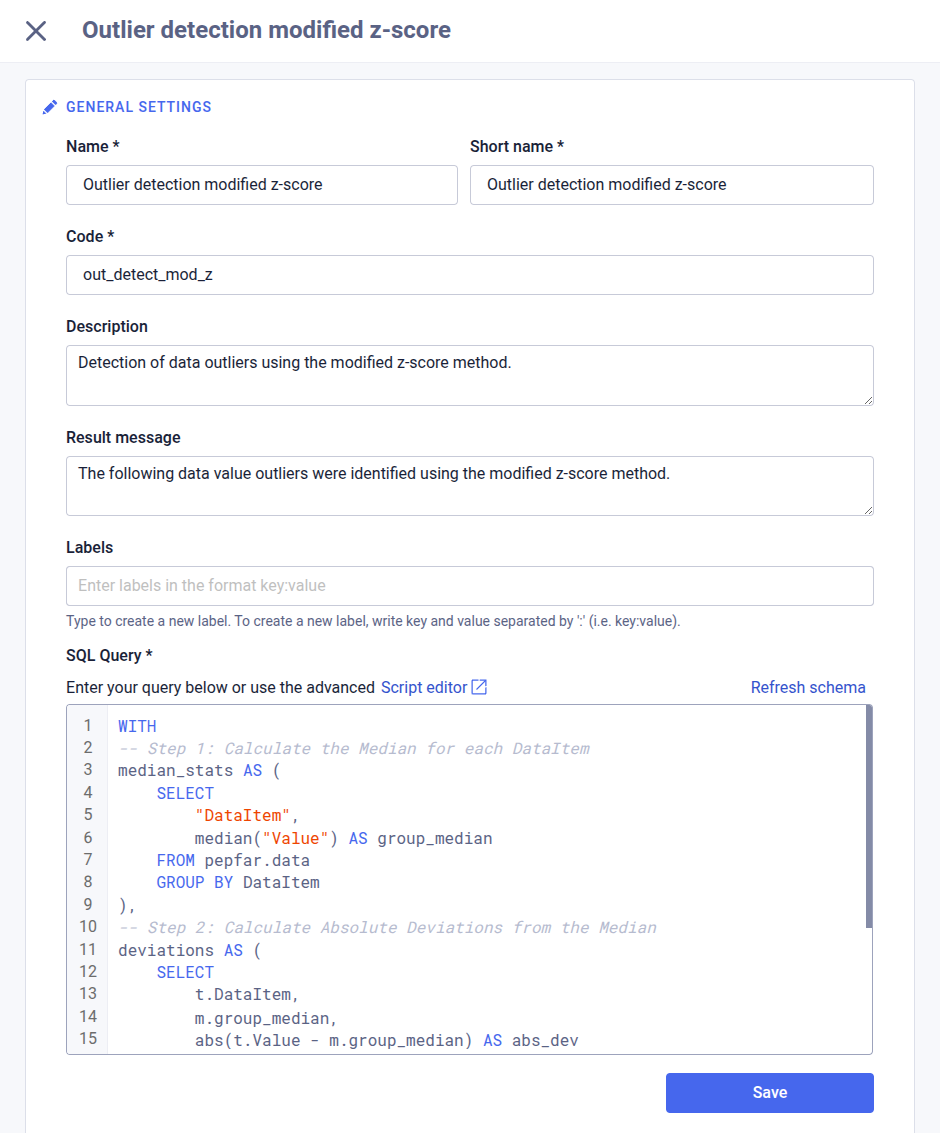
Enter the following information.
Field Description Name The name of the check (required) Short name The short name of the check Code The code of the check Description A description of the check Result message The message to display in check results including in notifications Labels One or many labels on the format key:valueSQL query A SQL query which specifies the conditions under which data is considered valid -
Click Create.
Edit data quality check
- Find and click the data quality check to update in the list.
- Click the context menu in the top-right corner.
- Click Edit.
- Update the relevant fields.
- Click Save.
Edit SQL query
- Find and click the data quality check to edit in the list.
- Click the context menu in the top-right corner.
- Click Edit the SQL query.
- In the SQL editor, edit the SQL query.
- Click Save.
Remove data quality check
- Find and click the data quality check to remove in the list.
- Click the context menu in the top-right corner.
- Click Remove.
Manage access for data quality check
- Find and click the data quality check in the list.
- Open the context menu by clicking the icon in the top-right corner.
- Click Share.
- Grant appropriate access levels to users and user groups.
- Click Save.
Manage data quality check groups
The following section covers how to view, create, update and remove data quality check groups.
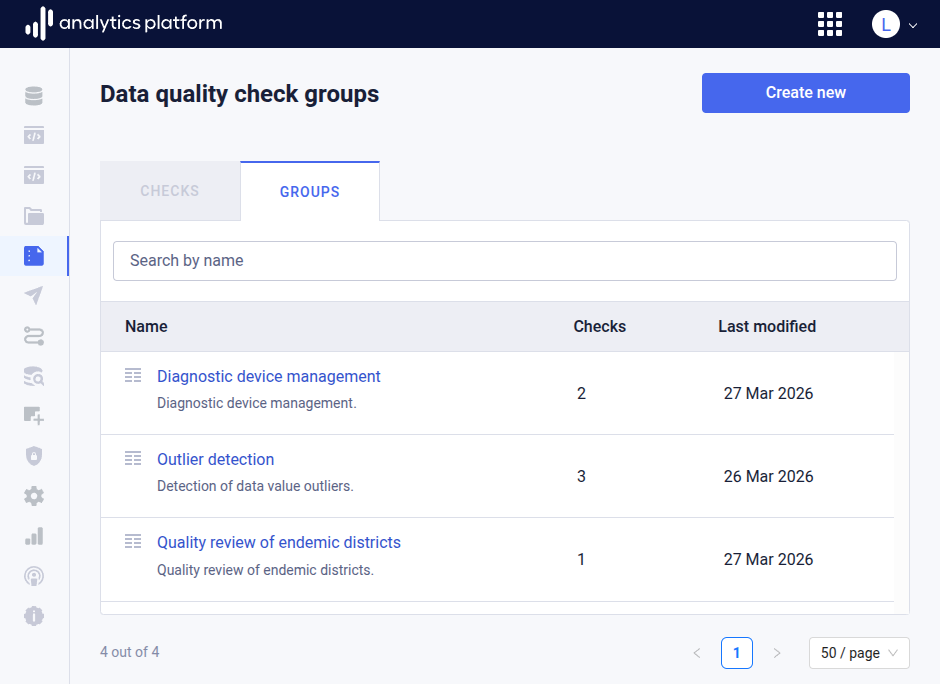
Create data quality check group
- Click Create new from the top-right corner.
-
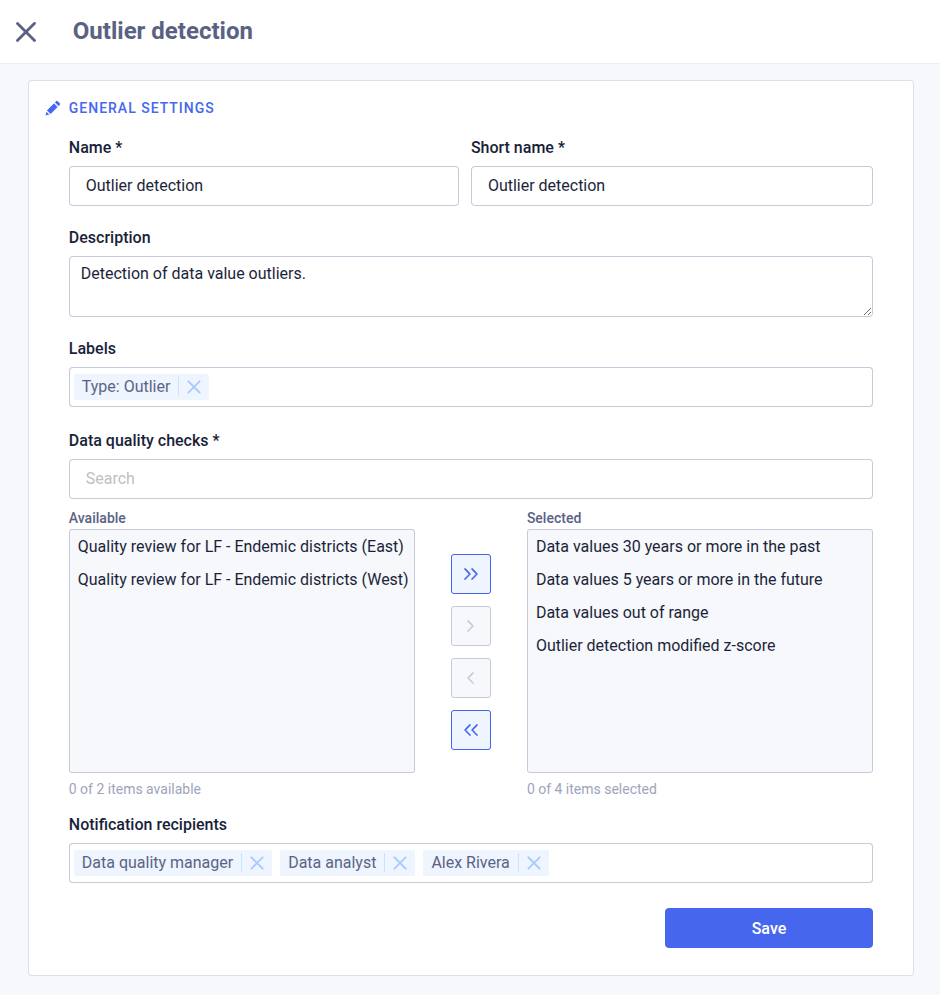
Enter the following information.
Field Description Name The name of the group (required) Short name The short name of the group (required) Description A description of the check Result message The message to display in check results and notifications Labels One or many labels on the format key:valueData quality checks The data quality checks to be included in the group Notification recipients The recipients of notifications specified as users and user groups -
Click Create.
Edit data quality check group
- Find and click the data quality check group to update in the list.
- Click the context menu in the top-right corner.
- Click Edit.
- Update the relevant fields.
- Click Save.
Remove data quality check group
- Find and click the data quality check group to remove in the list.
- Click the context menu in the top-right corner.
- Click Remove.
Run data quality group checks
Data quality check groups can be triggered manually. A data quality check task will start in the background when the group is triggered. Use the change log to view the task progress.
- Find and click the data quality check group to remove in the list.
- Click the context menu in the top-right corner.
- Click Run checks.
Notifications
Ensuring that relevant people are notified of data quality issues in a timely manner is an essential part of data governance and data quality management.
Notifications in AP are delivered as email messages to the email address of the users.
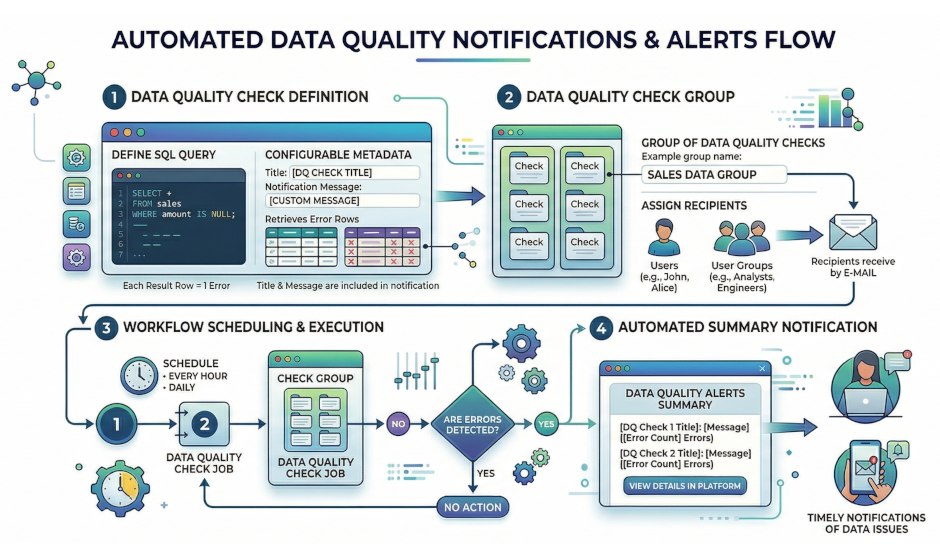
The main components of the user notification solution is described below.
- Data quality checks: Specifies data quality conditions and SQL queries which reveal data quality issues.
- Data quality check groups: Groups data quality checks and specifies the recipients of notifications for data quality violations.
- Workflows: Integrates and schedules data quality check groups in workflows.
- Email/STMP: Sends email notifications with summaries of data quality violations.
View change log
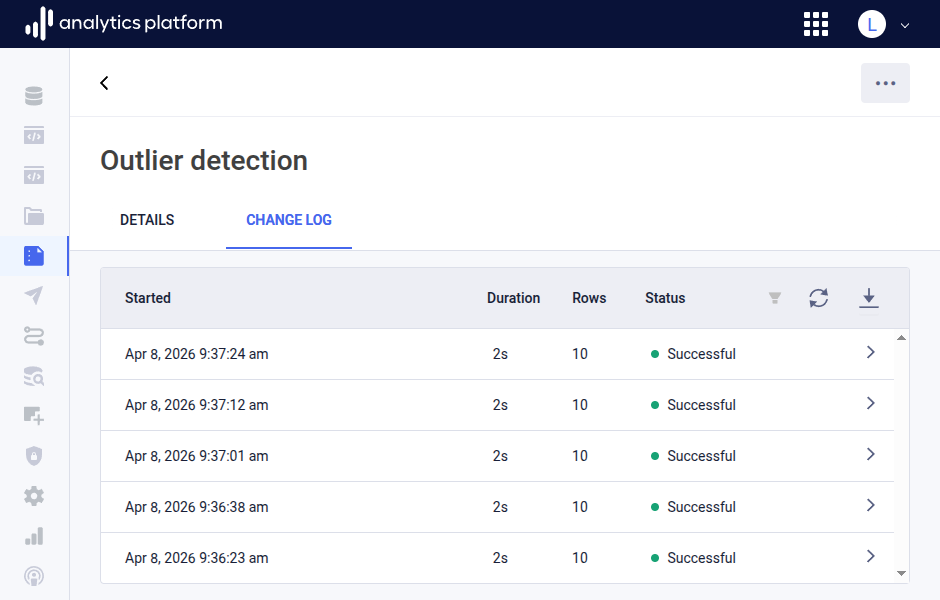
The Change log tab displays an overview of tasks for the data quality check group. A task represent a single data quality check group run. For each task, following information is available.
- Start time: The time at which the task started.
- Duration: The duration of the task.
- Rows: The number of data quality check violations which were identified by the task.
- Status: The status of the task, can be Successful, which means the task completed successfully, Failed, which means the task completed with an error, and Pending, which means the task is currently in progress.
Task log
You can click on a task row to view logs for the task. The logs provides detailed information for the data quality check group run.
Manage notifications
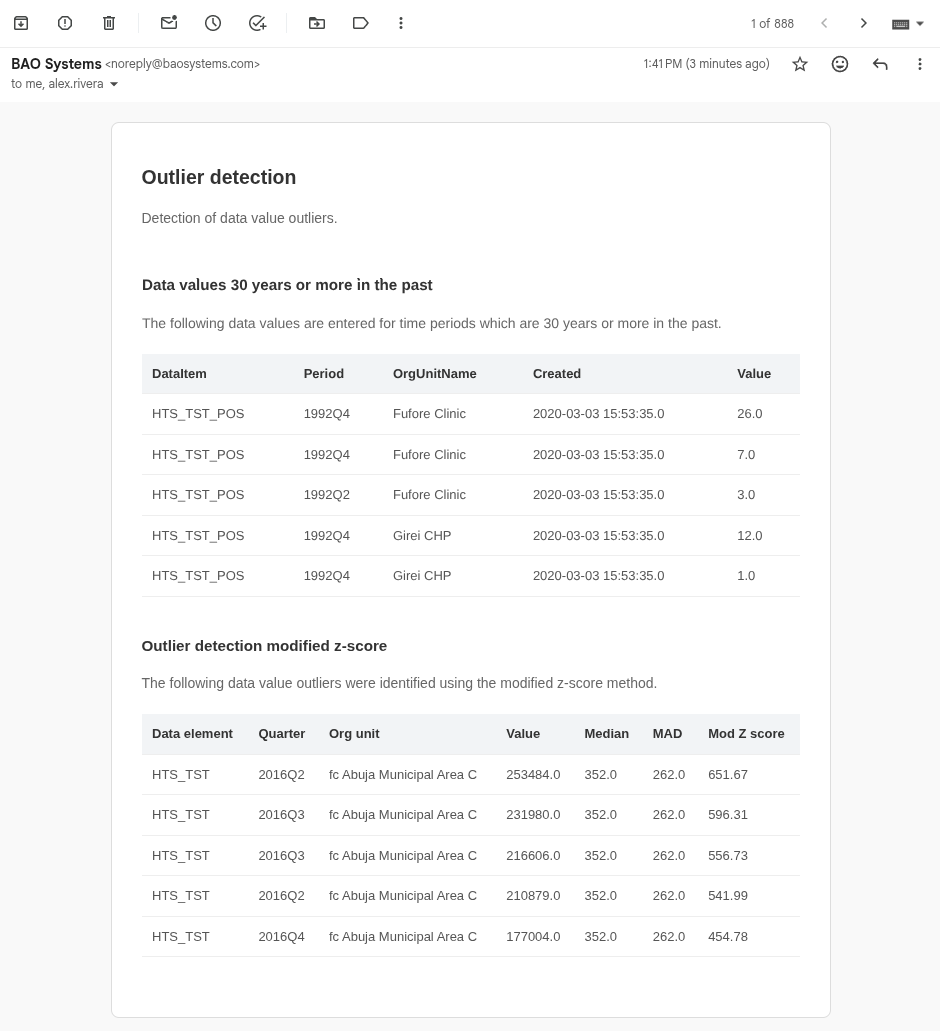
- Create data quality checks: Checks with at least one violation will be included in notification messages. The name of the data quality check will render as the title, and the notification message will render above the violation summary table for each check. Provide an informative message including instructions for how to investigate potential data quality issues in the notification message. The rows part of the result set returned from the SQL query will be presented in a table for each check.
- Create data quality check groups: Include data quality checks which are logically related in groups. The name and description of the group will render as the title and subtitle of the notification message.
- Create a workflow: Data quality checks and notifications are integrated in workflows, specifically in a workflow step, as a job of type Data quality check group. It is recommended to include the data quality step and job after steps which load data with data pipelines, so that the data quality checks are performed on up-to-date data. Workflows can be scheduled to run automatically at specific intervals, or be run ad-hoc from the context menu of the workflow overview screen.
- Configure email/SMTP: Ensure an SMTP server is available and configured for the AP installation. AP will send notifications to the email addresses of users specified in data quality check groups. The notification message is customizable, and a title, description and summary table are included for each data quality check.
Notification messages
A notification message includes the following information.
- Message title: Data quality check group name.
- Message subtitle: Data quality check group description.
- Checks: Data quality checks in the group are rendered sequentially.
- Check title: Data quality check name.
- Check description: Data quality check notification message.
- Check summary: Rows returned by the SQL query defined in the data quality check are rendered as a table.