Scripts
Overview
The integrated scripting support in AP allows data analysts and data scientists to create data transformations and analytics. AP supports the R scripting language. Python support is coming soon.
In AP, data pipelines automates the ingestion of data from multiple sources into the central data store. Scripts have access to the entire catalog of datasets and tables, allowing for integrated and sophisticatd data transformations.
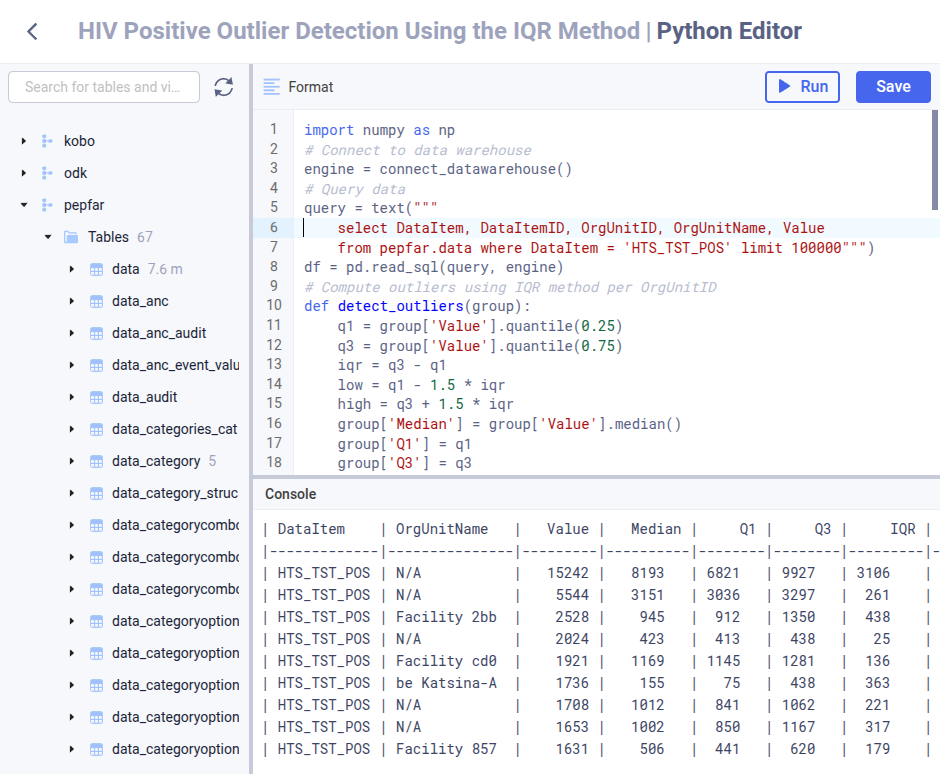
AP provides a web-based editor for scripting with syntax highlighting and code completion and a console area which displays script output. This makes it straight-forward to write scripts and get access to data.
Scripts can be included as jobs in workflows in combination with data pipelines, SQL transformations and destinations, allowing for flexible and orcestrated data movement and transformation.
Script flow
The sripting editor provides a function for aquiring a connection to the AP data warehouse. The function name is connect_datawarehouse and is available for all supported scripting languages. This function provides a connection to the data warehouse, making it easy to read and write data to the data warehouse. For scripts, a typical flow is described below.
- Retrieve data from the data warehouse with a SQL using the data warehouse connection provided by the
connect_datawarehousefunction. - The SQL query will specify aggregation and filters to retrieve the relevant data, and ensure that an appropriate set of data records is pulled into the script environment.
- Perform data computation such maching learning, forecasting and data modelling.
- Load the resulting data into a data frame.
- Write the data frame to a table in the data warehouse.
This section covers the supported scripting languages.
R scripting
The R scripting language is supported and is ideal for statistical computing and graphics.

Python scripting
The Python scripting language is supported and is ideal for machine learning, data modelling and statistics.
Manage scripts
The following section covers how to view, create, update and remove scripts.
View scripts
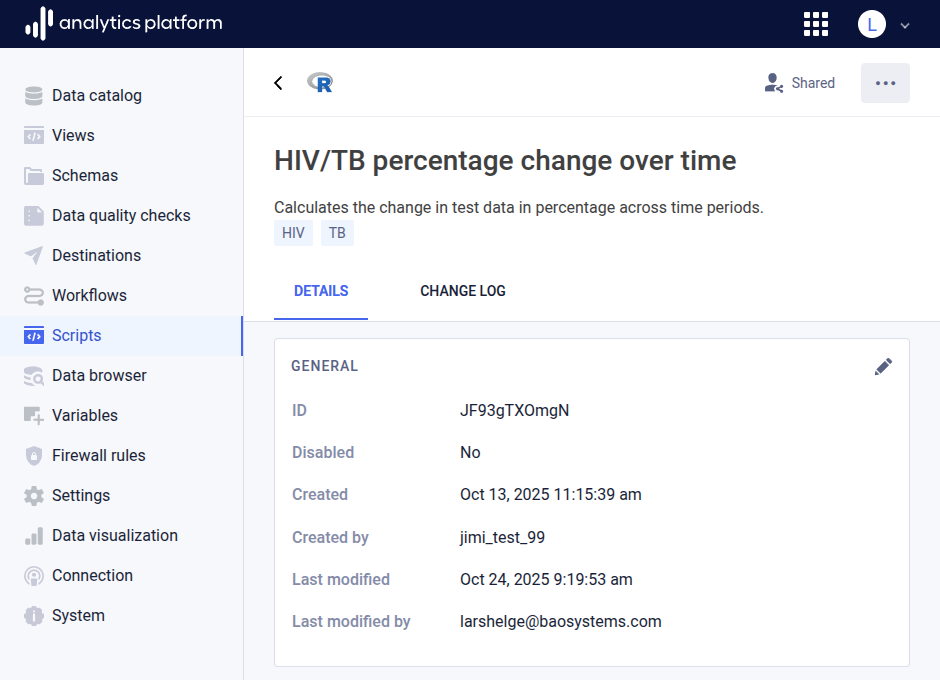
- Click Scripts in the left side menu to list all scripts.
- Click the name of a script to see more information.
Create script
- Click the Create new button from the top-right corner.
-
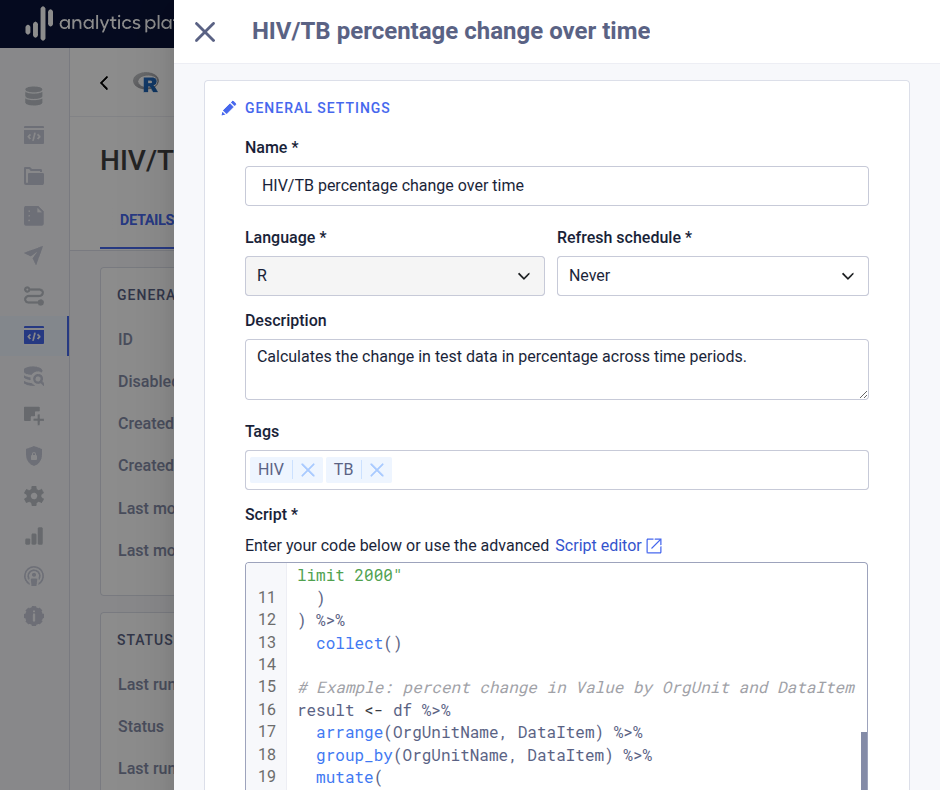
Enter the following information.
Field Description Name The name of the script Language The script language Refresh schedule The interval for when to run the script (required) Description A description of the script Tags Free text tags which categorizes the script Script The script code
Edit script
- Find and click the script to edit in the list.
- Open the context menu by clicking the icon in the top-right corner.
- Click Edit.
- Edit values in the relevant sections.
- Click Save at the bottom of the section.
- Close the dialog by clicking the close icon in the top-left corner.
Edit script code
- Find and click the view to edit in the list.
- Click the context menu in the top-right corner.
- Click Edit script.
- In the script editor, edit the script query.
- Click Save.
Remove script
- Find and click the script to remove in the list.
- Open the context menu by clicking the icon in the top-right corner.
- Click Remove.
Using Variables in Scripts
Scripts support the use of variables, allowing you to reference dynamic values within your script code. To reference a variable, use the following syntax:
${VAR_NAME}
For example, if you have a variable named START_DATE, you can use it in your script as ${START_DATE}. When the script is executed, ${START_DATE} will be replaced with the actual value of the variable.